Home
Home
Which format you would like to backup or rip your Blu-ray collection to? My answer would definitely be MKV. People is capable of making 1:1 copy of original Blu-ray Disc to MKV with all audio streams, subtitle tracks and chapter info preserved, MKV is also the most popular format for HD media players, including WD TV Live, Popcirn Hour A-200, and freeware and open source media players on computer like MPlayer.
Plus, you can freely switch audio and subtitle track when playing your ripped Blu-ray MKV movies in MPlayer. How to create a MKV movie from Blu-ray Disc for MPlayer? Below article offers brief instruction about backing up/ripping Blu-ray to MKV with lossless quality and tells you how to easily change audio and subtitle track when watching movie in MPlayer on Windows PC.
Preparation:
Install Pavtube ByteCopy free version
Get freeware MPlayer
An external Blu-ray Disc drive
Part 1. Convert/rip Blu-ray Disc to MKV with multiple audio and subtitle tracks
1. Launch Pavtube ByteCopy, import Blu-ray Disc from Disc drive.
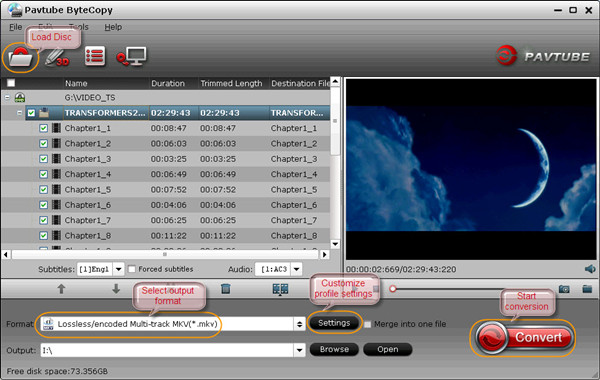
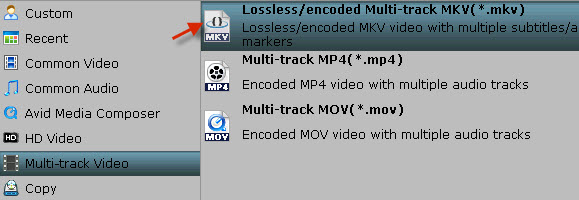
2. From Format drop-down list, find the optimized profile. For lossless Blu-ray to MKV backup you are recommended to choose “Lossless/encoded Multi-track MKV” as output format.
NOTE: you can remove unwanted audio or subtitle track(s) from saved file in Profile Settings.
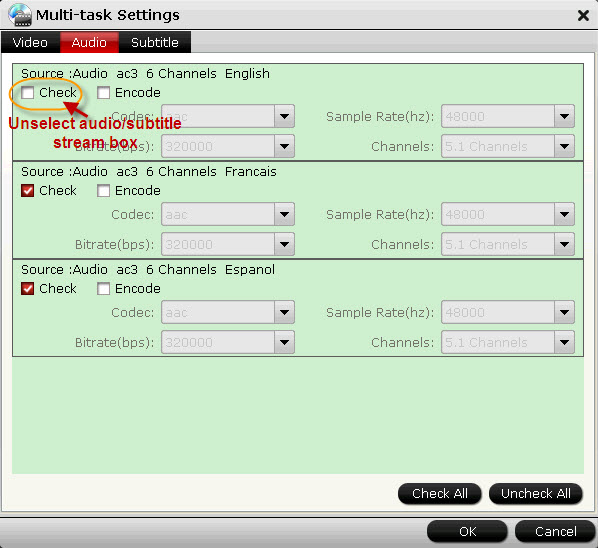
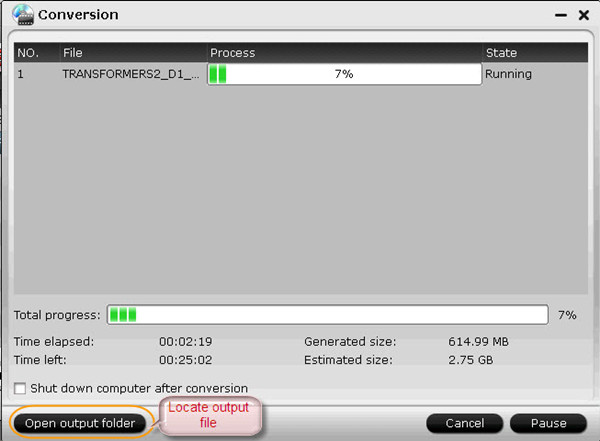
3. Return to ByteCopy GUI, click “Convert” button and start lossless Blu-ray to MKV backup, and after about 30 minutes you would get a ripped Blu-ray MKV file with multiple audio and subtitle tracks preserved.
Part 2. Play ripped Blu-ray MKV movies in MPlayer with audio and subtitle track.
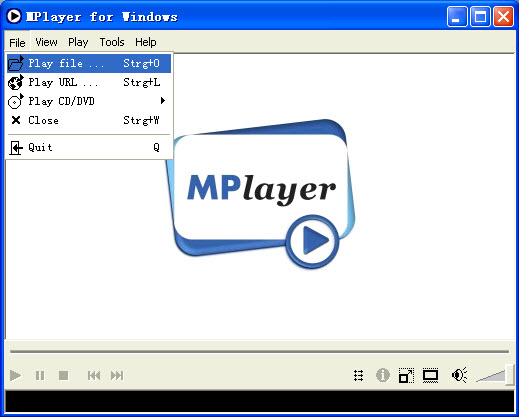
1. Open MPlayer, click “File > Play file” to start playing the ripped Blu-ray MKV movie.
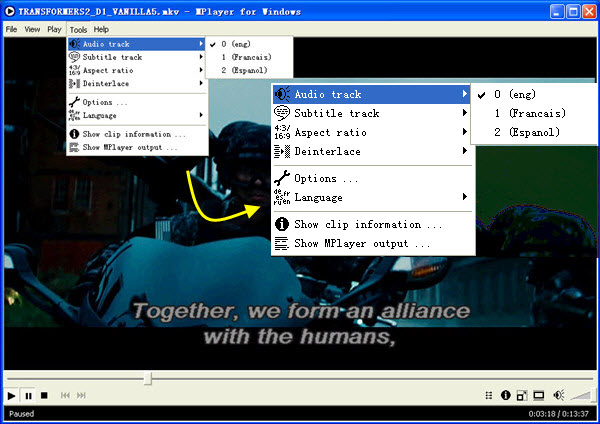
2. If you want to switch audio track, follow the path “Tools > Audio track” to choose your desired audio stream.
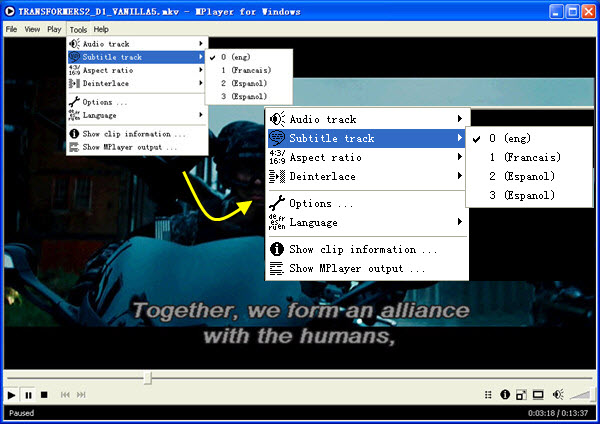
2. From “Tools > Subtitle track” path you can switch current subtitle to your wanted language shown during the movie playback.
More features in Pavtube ByteCopy:
1. Directly Copy Blu-ray Disc movie content into an intact M2TS file.
2. Support video editing options like trimming, cropping, adding watermark, attaching external subtitle file, splitting movie into segments, merging multiple titles into one, etc.
3. Besides MKV, ByteCopy allows users to rip Blu-ray/DVD Disc to .MP4, .M4V, .MOV, .AVI and many other formats for new iPad 3, iPad 4, iPad mini, iPhone 5, Apple TV 3, Samsung Galaxy Note 2, Galaxy Tab 3, Google Nexus 7 …
4. Copy the entire BD/DVD Disc to computer hard drive with same file structure preserved.
 Free Trial ByteCopy

Useful Tips
- How to Play MXF with VLC?
- Use XBMC for Blu-ray Playback on Mac
- Play ripped Blu-ray MKV files in MPlayer with audio and subtitles track
- How to play Blu-ray movies in VLC on Mac with selected audios/subs?
- Get Windows Media Center playing MKV movie ripped from Blu-ray Disc
- Enable Windows Media Player play MKV videos