Home
Home“I recently formatted my computer and installed fresh windows 7 x64, but I cannot watch my .mkv files previously ripped from original Blu-ray Disc through the Windows Media Center, but I can play other movies in .avi. Here is the error message I get when I want to play any MKV movie. Any ideas what can it be?”
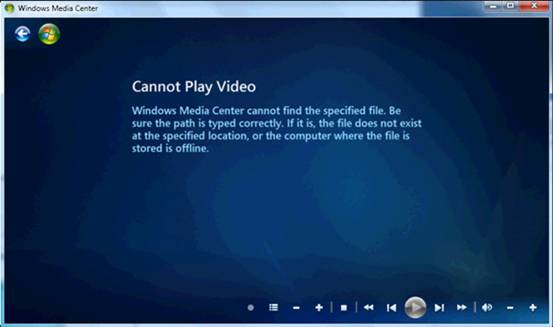
If you do some research online and you would find many people have same confusion with Windows Media Center. This error message appears when Windows Media Center is unable to play the file, either the correct codec is not installed or the source media is corrupted. There is another possibility is that the file type you put into Windows Media Center is unsupported.
On Microsoft official website, you could find all file types supported by Windows Media Center, but *.mkv (Matroska) is not one of them. In other word, Windows Media Center does not natively support playing .mkv files. How to get Windows Media Center playing MKV movie ripped from Blu-ray Disc?
Here we present you a simple way to easily play MKV movies in Windows Media Center
Step 1: Bakup Blu-ray Disc to MKV.
Download Pavtube ByteCopy to lossless backup your Blu-ray Disc to MKV with multiple subtitles and audio streams as well as chapter info included.
Tip 1: Under profile settings, leave out unwanted audio or subtitle track and the whole backup process would only take 20-30 minutes.
Step 2. Download required MKV codec packs.
There are two essential codec packs for playing MKV with Windows Media Center, and you need to install both. Download the codecs from below links.
1) Windows 7 codecs by Shark007
2) x64 Components addon by Shark007
Step 3. Setup Shark007 for MKV playback.
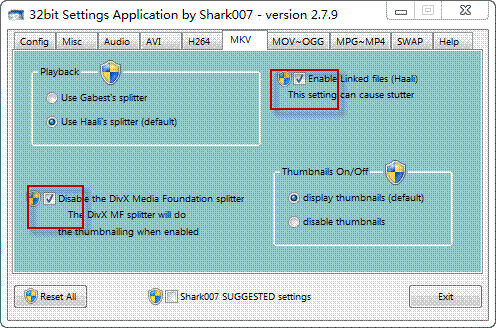
1) Windows 7 codecs settings
Run the Windows 7 codecs, and switch to MKV tab, then check the box of “Enable Linked files(Haali) and “Disable the DivX Media Foundation splitter”.
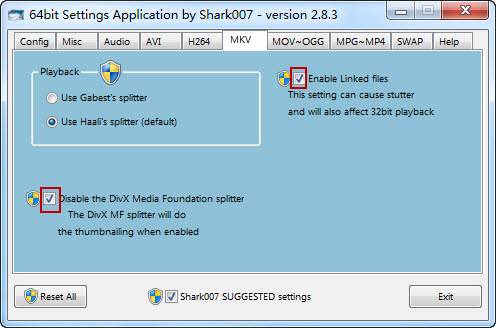
2) x64 Components addon settings
For a 32bit Windows 7 PC, simply run x64 Components addon, switch to MKV tab, and check the box of “Enable Linked files” and “Disable the DivX Media Foundation splitter” as it shows below.
Step 4. Play HD MKV movie in Windows Media Player
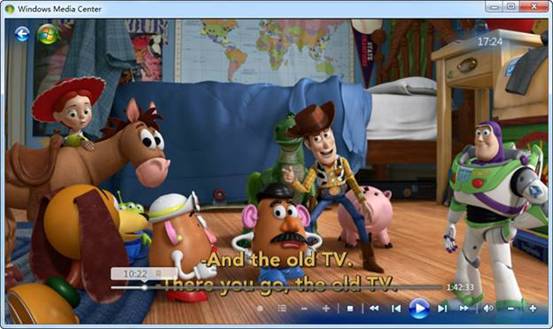
Locate the ripped Blu-ray MKV movie on your computer, right click it and chose to open it in Windows Media Center. With the help of Shark007 MKV codec pack you are able to enjoy HD MKV movie ripped from Blu-ray Disc in Windows Media Center or Windows Media Player.
Tip 2: How to switch between subtitles and audio language in Windows 7:
Find a small icon of Shark007 at the right of taskbar on your desktop, and right click to set subtitles and audio language. To turn off subtitles, just select “No subtitles” from the shortcut list.
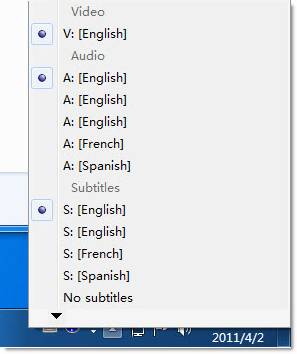
Tip 3: To play Blu-ray Disc in Windows Media Center, you can also directly rip your Blu-ray Disc to Windows Media Center supported video format.
Additional Information:
Pavtube ByteCopy application can lossless backup BD\DVD Disc to MKV with chapter markers preserved, it also includes video editing features so that you could trim, crop, split BD\DVD movie, add watermark into video and merge several movies into one big file. Plus, ByteCopy supports Directly Copy BD\DVD Disc main movie, saving 100% intact .M2TS/VOB main movie without extracts, as well as all subtitle and audio tracks preservation.
 Free Trial ByteCopy

Useful Tips
- How to Play MXF with VLC?
- Use XBMC for Blu-ray Playback on Mac
- Play ripped Blu-ray MKV files in MPlayer with audio and subtitles track
- How to play Blu-ray movies in VLC on Mac with selected audios/subs?
- Get Windows Media Center playing MKV movie ripped from Blu-ray Disc
- Enable Windows Media Player play MKV videos