Home
Home
This guide is written for Pavtube ByteCopy users that feel like to compress Blu-ray movies to smaller file size with great video quality, 5.1 audio tracks (AC3 and DTS), multiple subtitles streams and original chapter structure. Though mainly designed for lossless Blu-ray/DVD movie backup, the Pavtube ByteCopy software offers transcoding options for converting and shrinking Blu-ray movies to H.264, Xvid, and MPEG-2 video files.
Guide- How to compress Blu-ray movies (BD-50 and BD-25) with Pavtube ByteCopy
Step 1. Load Blu-ray movie from Disc.
Run Pavtube ByteCopy, and click “Load Disc” button  to import movie files from copy-protected Blu-ray Disc (BD-50 or BD-25). To load BDMV folder, choose “Load BD/DVD folder” from the dropdown list of “Load Disc”.
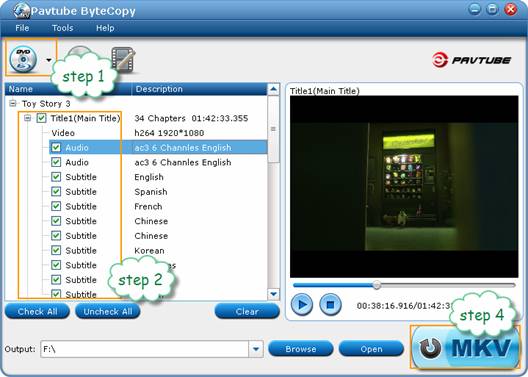
Step 2. Choose output titles, audio tracks and subtitles to keep.
To shrink Blu-ray with smaller file size, you’re advised to keep main movie only. The main movie is included in Title 1 is selected by default. Expand main title, and uncheck the audio and subtitles you don’t want to keep.
Step 3. Down convert 1080p Blu-ray movie to H.264 MKV.
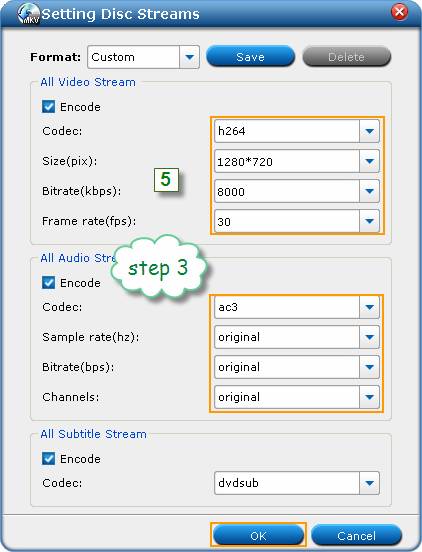
Pavtube ByteCopy provides 3 codecs for transcoding movie, i.e., MPEG-TS, Xvid and H.264. H.264 codec is recommended for its ability of maintaining pretty good video quality with higher compression ratio. To shrink 1080p Blu-ray movie to H.264 MKV, follow the steps below.
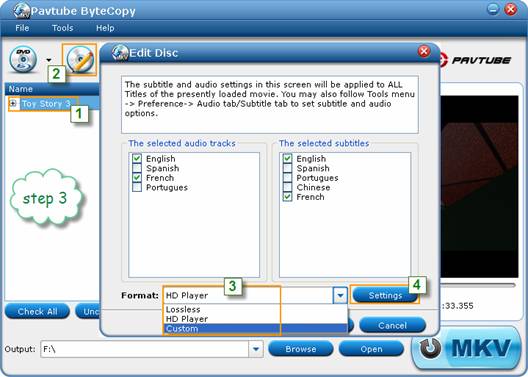
1. Select/highlight the whole movie (root directory).
2. Click “Edit Disc”.
3. Find “Format” box on popup window, and select “Custom” from drop-down list.
4. Press “Settings” button.
5. Check the “Encode” box under “All video streams”, select H.264 as video codec, and then set video size(1920*1080, 1280*720, etc), bitrate(512kbps- 18000kbps). To compress a 90min Blu-ray movie to DVD quality (4-6GB), set 5000kbps. For down converting Blu-ray movies on an 46’ HDTV (8-12GB), set 8000kbps to 10000kbps. Check the “Encode” box under “All audio streams” to compress HD audio to AC3/AAC/DTS 5.1 audio.
Step 4. Back to the main interface, and press the “Convert” button  to start down compressing Blu-ray movie to MKV with multiple audio tracks and subtitles included. The Pavtube ByteCopy software will take advantage of CUDA computing for speeding up Blu-ray shrinking process when an NVIDIA CUDA ready graphics card is installed. This will greatly reduce conversion time.
Software access- Click to Download a trial of Pavtube ByteCopy for shrinking Blu-ray movie.
Tips and Tricks for compressing Blu-ray Disc (BD-50 or BD-25) to MKV:
1. Pavtube ByteCopy is able to save your settings as a new output format for future use, so that you won’t bother to set a/v settings each time when shrinking Blu-ray movies. Check for details of how to create custom format here.
2. Commercial Blu-ray Disc may contains Dolby Digital, Dolby Digital Plus, Dolby Lossless (TrueHD), LPCM,DTS digital surround, and DTS-HD (master audio). When you leave “Encode” box below “All audio streams” unchecked, the ByteCopy software will simply pass-through original HD audios. Better check your devices (media player and av receiver) before you decide whether compress Blu-ray HD audios or just copy them to MKV container.
3. By default the video size is “original”. When you make changes to video size, please also check the “Encode” box below “All Subtitle Stream”. Although the original subtitle looks fine for 1920*1080 video, it might go beyond the screen when the video is resized to 1280*720, so make sure the subtitle is converted as well.
4. To backup a BD-50 to BD-25/copy dual layer Blu-ray movie to single layer Blu-ray Disc with audio tracks, subtitles and menus included, you may first use Pavtube ByteCopy to compress Blu-ray movie to MKV and then use tsMuxer to recover Blu-ray structure (BDMV folder), and Imgburn to burn BDMV to blank BD-25. Set 18000kbps for video bitrate for BD to BD backup.
 Free Trial ByteCopy

Useful Tips
- How to keep original/ correct aspect ratio for 16:9 and 4:3 display?
- Blu-ray Ripping- improve Blu-ray converting speed with GPU acceleration
- Convert MKV to H.264 MP4 for streaming over DLNA
- How to Play Blu-ray Movies on Android Tablet?
- Blu-ray ripping- how to keep 5.1 and 7.1 audio?
- [How to] Turn your Blu-rays to iTunes playable 1080p MP4 movies