Home
Home
With its high-resolution 10.1-inch multi-touch widescreen display, Toshiba Thrive Tablet is well-sized for watching movies, surfing the net, playing games, reading books and more. With an NVIDIA? GeForce? GPU, you can not only experience console-quality gaming performance, but also HD video playback. Have you ever thought of watching your Blu-ray movies on this amazing tablet? A commercial Blu-ray movie comes with copy-protection and m2ts streams incompatible with Thrive, so if you wanna watch Blu-ray on the Thrive tablet, you need use a Blu-ray to Toshiba Thrive Converter to remove BD encryption, and meanwhile convert it to thrive playable file format.
For your reference: Multimedia Playback capability of Thrive
- Audio compatibility: MP3, WMA, AAC, eAAC+, Ogg Vorbis, WAVE
- Video compatibility: MPEG4, H.263, H.264
Here is a guide on how to rip Blu-ray to Thrive for playback via using Pavtube Blu-ray to Toshiba Thrive Converter.
Step 1: Down load the free trial version of Pavtube Blu-ray to Toshiba Thrive Converter (note: the video files generated by the trial version come with pavtube watermark in the center of the video), install and run it. Click the Blu-ray disc icon, or the Blu-ray folder icon to load the source Blu-ray directly from your BD drive or from the Blu-ray movie folder on your computer hard drive. 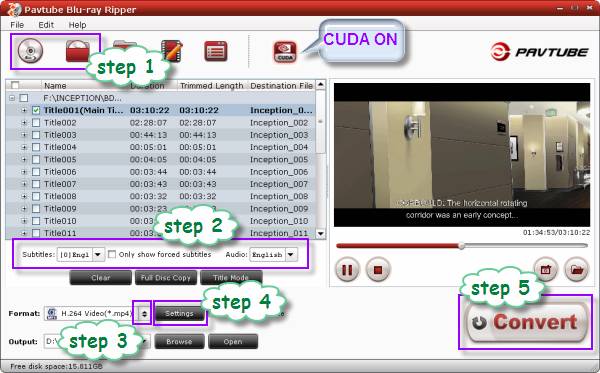
Tips – About CUDA: 
Note that CUDA is accessible only when there is an NVIDIA graphics card that supports GPU en-decoding acceleration. The CUDA button will be grayed out/denied when the software fails to detect a satisfactory NVIDIA graphics card. And The CUDA works only when creating H.264 encoded video files. Learn more about Pavtube software supported graphics cards
Step 2: Select your wanted audio track and subs track to be kept in the output file.
Step 3: Click “Format” menu to select “Common Video” > “H.264 Video (*.mp4)” as output format. 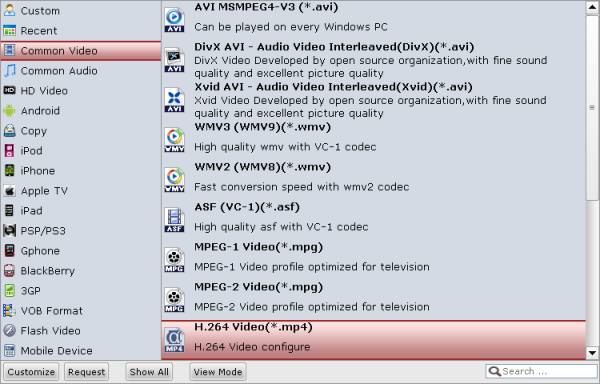
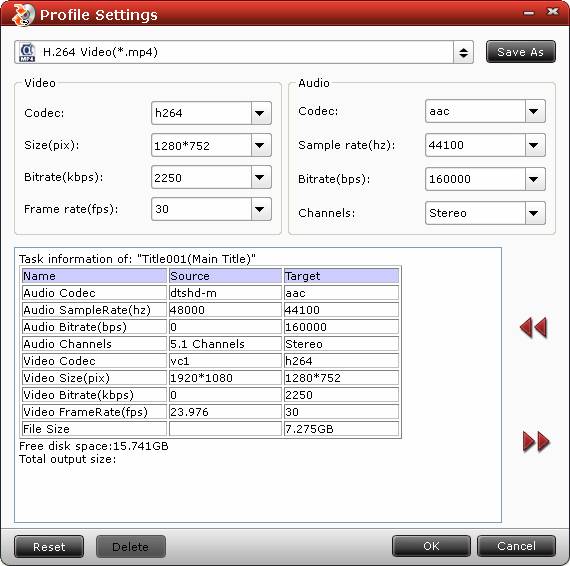
Step 4: Click on “Settings” button to optimize video and audio settings for output files.
Following are the recommended best settings for Toshiba Thrive:
Video
Codec: h264
Size(pix): 1280*752
Bitrate(kbps): 2250
Frame rate(fps): 30
Audio
Codec: aac
Sample rate(hz): 44100
Bitrate(bps): 160000
Channels: Stereo
Step 5: Rip Blu-ray to Thrive for playback
Click “Convert” button to start making Blu-ray playable with Thrive. When the conversion is done, you can simply click “Open” button to get the final output files. Add the ripped Blu-ray movie file to your Thrive tablet, and enjoy!
 Free Trial Blu-ray Ripper

Useful Tips
- How can I Play Flash Video (FLV, F4V) on Kindle Fire HD?
- Connect Kindle Fire HD to Computer (Windows/Mac) for Files Transfer
- Enable Surface RT & Pro Tablet to Play MKV/AVI/MPG/TiVo/VOB Files Effortlessly
- How to Play VOB on Kindle Fire without any Hassle ?
- Enable Microsoft Surface RT/Pro Tablet to Play Flash FLV/F4V Videos
- Samsung Galaxy Tab AVI – put and play AVI on Galaxy Tab