Home
Home
Blu-ray ISO files always play wonderfully, but take up a freaking load of drive space. To significantly reduce the size of the file, you can convert these BD ISO image files to the h264 codec, and package everything into the MKV container. If you don’t wanna suffer a great loss in quality, you can use the best Blu-ray to MKV software to rip/package Blu-ray ISO to H.264 MKV with least quality loss. Go to check a detailed guide on how to -rip/package BD ISO to MKV by using the best Blu-ray to MKV Converter software.
Required software
Pavtube ByteCopy
Main features of Pavtube ByteCopy
Create MKV files from recently released Blu-ray discs and DVDs.
Preserve multiple subs and audio tracks/Remove unwanted subs/tracks.
Retain chapter markers/Support lossless output.
Allow full preservation of HD audios, like DTS HD Master Audio, Dolby TrueHD Audio.
Preserve soundtracks and subs in multiple languages, e.g. English, Spanish, French, Deutsch…
Note:
BD ISO image file can only be loaded into Pavtube ByteCopy via a virtual BD drive. See the details on how to mount virtual BD drive as below:
1: Run free virtual drive DAEMON Tools Lite on PC.
Download and install the free virtual drive “DAEMON Tools Lite” from below link:
http://download.cnet.com/3001-2248_4-10063543.html?spi=0e5e48eadf307896cfcc7d28b235bd26
After the installation finishes please run DAEMON Tools Lite.
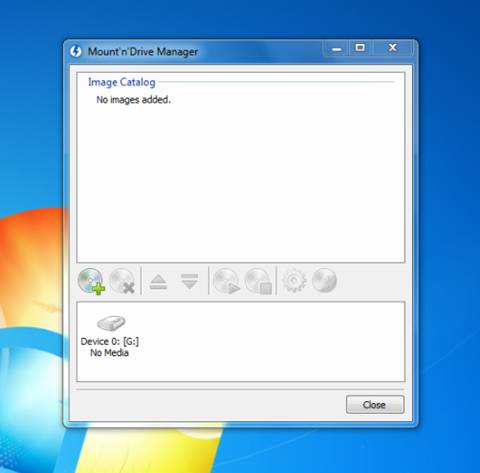
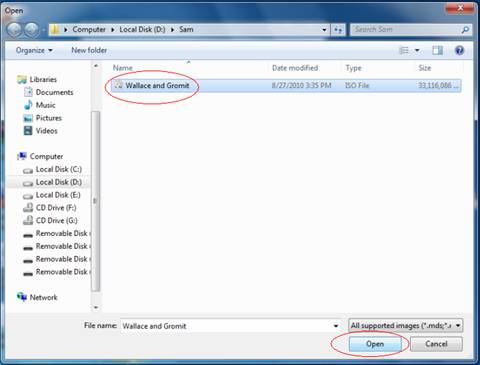
2: Add blu-ray ISO image file
Click  to add the blu-ray ISO file into virtual drive: select the ISO file and then click “Open”.
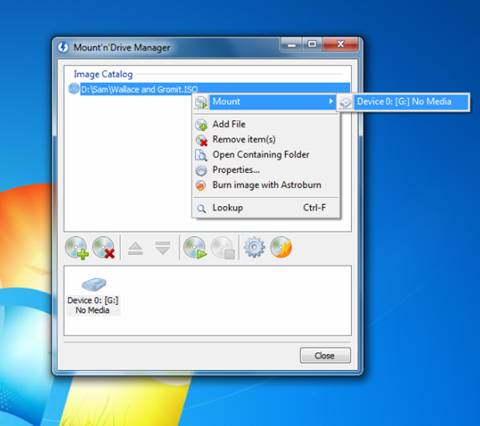
3: Mount blu-ray ISO image to virtual drive.
Right click on the file name and select “Mount” > “Device 0”.
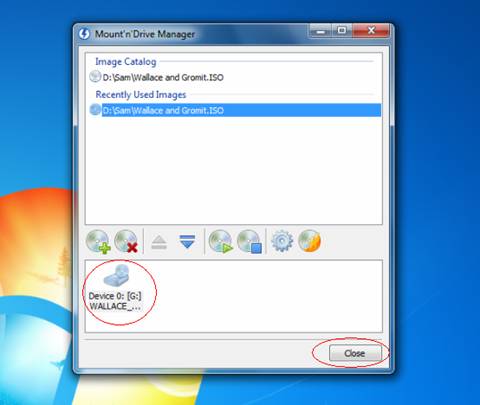
After the blu-ray ISO image file is mounted into virtual drive, please click “Close” icon. Now the ISO image file will show in your BD-Rom Drive.
How to rip/package Blu-ray ISO to MKV with lossless quality?
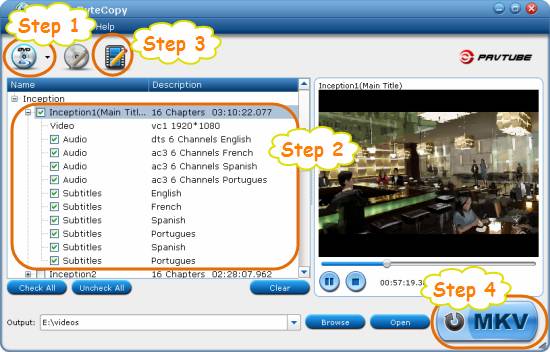
Step 1: Free download Pavtube ByteCopy, install and launch it
Once run the best Blu-ray to MKV software, you can click the “DVD/Blu-ray disc” icon to load your Blu-ray ISO image files (now it is recognized as a BD-ROM disc file by the virtual drive).
Step 2: Tick off the titles that you want to convert to MKV
The main title of the Blu-ray movie is checked by default once loaded. If you wanna rip all bluray titles to MKV container, you can hit the “Check All” button to select all titles, or you can click ‘Uncheck All” button to cancel your former selection.
Meanwhile, you are able to click the “Plus” icon before the title name to see the detailed movie info, including video streams, audio tracks, and subtitles. You are free to remove any audio tracks and subs under the tree structure.
Step 3: Choose h264 as video codec for MKV container
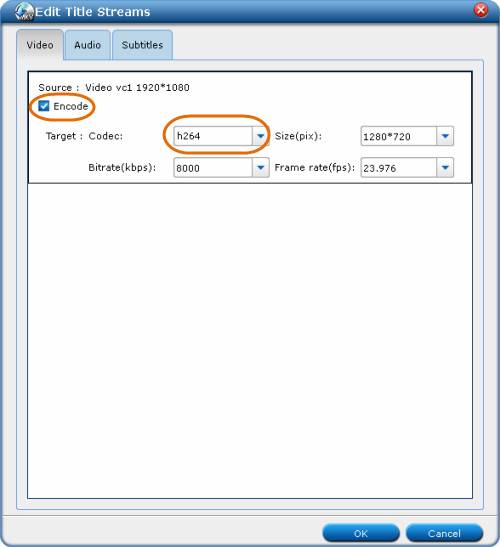
Click on the title name, and then click “Edit” icon to enter the “Edit Tile Streams” window. Tick off the checkbox before “Encode”, and then select h264 as target codec. Actually, best Blu-ray to MKV software sets the codec as h264 by default, if you need rip Blu-ray ISO to h.264 MKV, you can totally skip this step.
Step 4: Start Blu-ray ISO to MKV conversion
Click “Convert MKV” button to start backing up/copying Blu-ray ISO to H.264 MKV. After the conversion process is finished, you can click “Open” button to get the generated H.264 MKV files with ease. Hope this helps.
 Free Trial ByteCopy

Useful Tips
- How to keep original/ correct aspect ratio for 16:9 and 4:3 display?
- Blu-ray Ripping- improve Blu-ray converting speed with GPU acceleration
- Convert MKV to H.264 MP4 for streaming over DLNA
- How to Play Blu-ray Movies on Android Tablet?
- Blu-ray ripping- how to keep 5.1 and 7.1 audio?
- [How to] Turn your Blu-rays to iTunes playable 1080p MP4 movies