Home
HomeHave shot some magnificent footage with your AVCHD camcorder and wanna to import them to Pinnacle Studio for editing? Well you’d better convert AVCHD footage to MPEG2 first then, because AVCHD footage is not really well-supported by Pinnacle Studio. What is the best software for this conversion? Give a shoot with Pavtube HD Video Converter and you’ll find it is quite easy to edit AVCHD files in Pinnacle Studio. Below is a short guide telling you how to convert or shrink 1080p HD contents to Pinnacle Studio friendly formats.
Software availability:
HD Video Converter is offered at $35 by Pavtube Studio, there’s HD Video Converter trial for users to test the software out before purchase.
Step 1. Install and launch Pavtube HD Video Converter, add the HD video you want to convert. Press the “Add” button to load the AVCHDHD file that you'd like to convert. Besides AVCHD MTS and M2TS format, the program also supports TS, M2TS, TP, TRP, DV, RM, RMVB, MP4, MKV, MOV, WMA, VOB, H.264, 3G2, AAC etc.
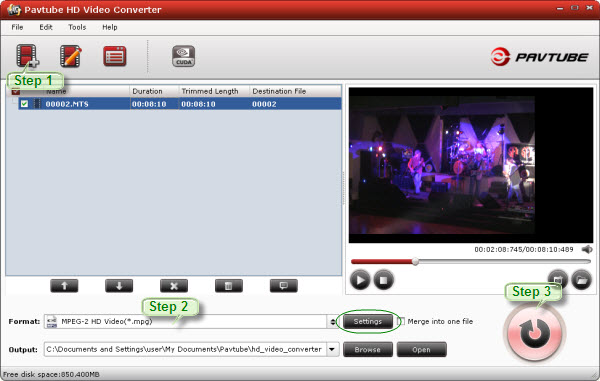
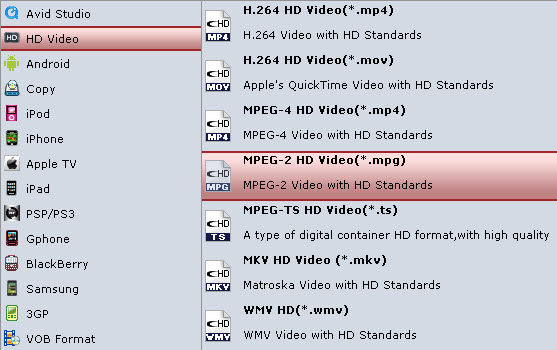
Step 2. Set output video format for your video conversion. Click the “Format” bar and move to “HD Video” and then select a 1080p HD video format from drop-down list. Basically, MPEG-2 HD Video (*.mpg) format is recommended, since MPEG-2 encoded videos are friendly to Pinnacle Studio. Finally, click the file icon beside output bar, and choose a destination folder for saving output files.
Step 3. Click “Convert” button to start converting 1080p AVCHD into Pinnacle-optimized videos. Then you could click “Open” button to find the converted MPEG video in destination folder. In this way 1080p AVCHD footage can be successfully loaded to Pinnacle Studio for editing and authoring.
Tips:
1. To join or split AVCHD clips, you can combine files together by checking “Merge into one file”. To split video and trim off unwanted segments, you may click “Edit” menu, switch to “Trim” tab, and set starting and ending time to include the part you want to keep only, and then leave the split work to Pavtube HD Video Converter.
2. To cut down file size, you can click “Settings” and set a smaller video bitrate. In “Settings” panel you can also set video resolution (1920x1080, 1440x1080, 1280x720, etc).
 Free Trial HD Video Converter

Useful Tips
- Import footages/videos/projects into Final Cut Pro X without rendering
- Convert 1080p MTS Videos to Windows Movie Maker
- Import and edit MTS/M2TS files with Windows Movie Maker
- Import/Edit/Transcode Sony NEX-5N/NEX-7/A57/A65/A77 1080 50/60P AVCHD to iMovie on Mac
- Transcode TiVo Shows to AIC for Editing in iMovie and FCE
- Convert Panasonic MXF Footages to FCP as ProRes for Editing