Home
HomePavtube Mac MTS to iPad/iPad 2/iPad 3 Converter is a professional converting tool specially designed for iPad user and Mac user. With this application, you can convert the footage captured by a Sony, Canon, JVC, or Panasonic AVCHD camcordercamera to a format compatible with iPad, iPad 2 or new iPad, so as to experience the perfect video playback quality on your iPad. This article aims to tell you how to convert AVCHD MTS M2TS files to iPad supported format on Mac with Pavtube MTS/M2TS Converter for Mac. Go to find a step-by-step tutorial in the following paragraphs.
How to transcode MTS/M2TS footages to iPad/iPad 2/iPad 3 on Mac?
1. Free download, install and launch this MTS/M2TS Converter for Mac.
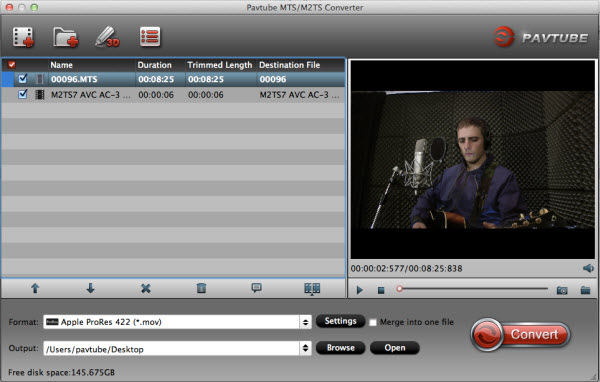
Once you launched it, you can click “Add” button to import your .mts/.m2ts footage. Batch conversion is supported by this Mac MTS converter, so you can add multiple files to the program at a time.
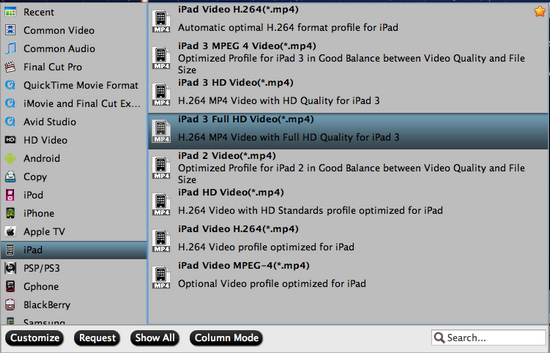
2. Choose iPad preset profile. Click on the pull down menu at the end of “Format”, and then hit “iPad” preset. You can choose "iPad -> iPad 3 Full HD Video H.264 (*.mp4)". you may choose other iPad profiles as you need.
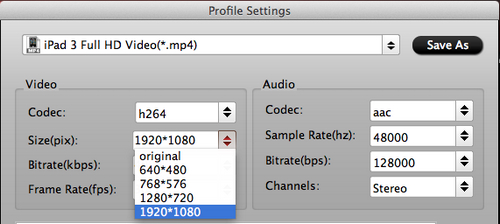
3. Click “Settings” button, and you will see all the video and audio conversion parameters set by default, including codec name, bitrate, frame rate, size, sample rate, and audio channel. Generally speaking, these default parameters will guarantee an excellent video-watching experience on your iPad, so reset is not recommended. To convert AVCHD MTS/M2TS video to iPad, and in order to get better enjoyment, you can customize the resolution, bitrate to your iPad.
4. You can edit the MTS/M2TS in the converter before convert AVCHD files to iPad, iPad 2 or new iPad. You can trim, crop, add watermark or adjust effect to the video.
5. Click “Convert” button to start conversion.
This Mac AVCHD to iPad Converter will finish conversion at speed, and will never let you encounter audio and video out of sync issues. Once conversion is done, you can click “Open” button to easily get the output .mp4 files for your iPad. After that, just sync the .mp4 files to your iPad with iTunes, and then you can play MTS/M2TS videos on iPad in MP4 format.
You may also want to read: How to Sync files to iPad with iTunes?
 Free Trial MTS/M2TS Converter for Mac

Useful Tips
- How to convert AVCHD MTS/M2TS to MKV?
- Convert AVCHD (MTS/M2TS) Videos for Playing on iPhone
- Convert AVCHD/AVCHD Lite Footage to Apple ProRes 422 Encoded Files for Final Cut Pro
- Sony M2TS to Windows Movie Maker Converter
- Canon Vixia MTS to Windows Movie Maker Converter
- Convert 1080p MTS Videos to Windows Movie Maker