Home
HomeKnowledge about DVD and AVI:
What is DVD?
DVD which stands for “Digital Video Disc” or “Digital Versatile Disc” is a popular optical disc storage media format. It is mainly used in video and data storage. Most DVDs are of the same dimensions as compact discs (CDs) but store more and more than 6 times as much data.
What is AVI?
AVI (known as Audio Video Interleave) is a multimedia container format introduced by Microsoft in November 1992 as part of its Video for Windows technology. AVI files can contain both video and audio data in a file container that allows synchronous video-with-audio playback.
Do you need to convert DVD to AVI files for watching on your Blackberry? Here I recommend you a top DVD to AVI converter- Pavtube DVD to Blackberry Converter which can help you to easily rip DVD to AVI for your beloved blackberry. And this guide will tell you how to realize this goal in a few steps.
1: Download and install Pavtube DVD to Blackberry Converter
2: Load DVD files
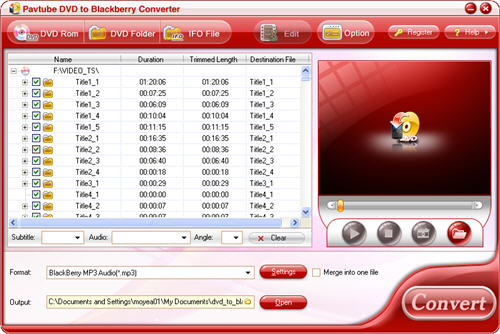
Import DVD files from the DVD disc or DVD folder with IFO and VOB files by clicking any button of the DVD Rom, DVD Folder or IFO File. And you will see this interface as below.
3: Set output format and location
Select the output format you need from the menu of “Format”. Specify the output path by clicking the folder button.

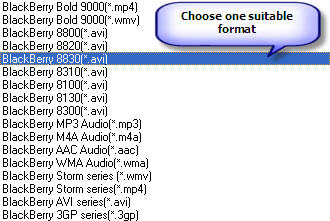
You can select the suitable format from the drop-down list to your Blackberry. Here I choose BlackBerry 8830[.*avi] as an example.
4: Set advance settings
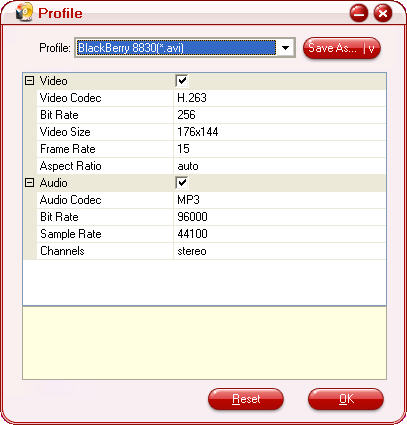
If you want to set the advanced settings like video codec, bit rate, video size, frame rate, aspect ratio, audio codec, sample rate, etc, you can click the button “Settings” at the bottom of main interface.
5: Preview and snapshot
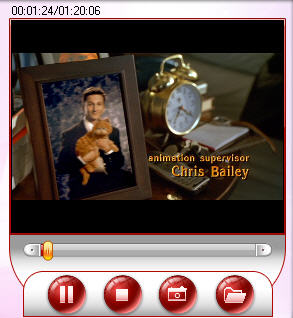
Select one chapter or a title on the right pane of the main interface and double click on the file name or the “Play” button, you will preview the whole movie. If you want to take some images for future use, you can click the “Snapshot” button.
6: Start conversion
After all necessary settings are ready; you only click button “Convert” to start conversion.
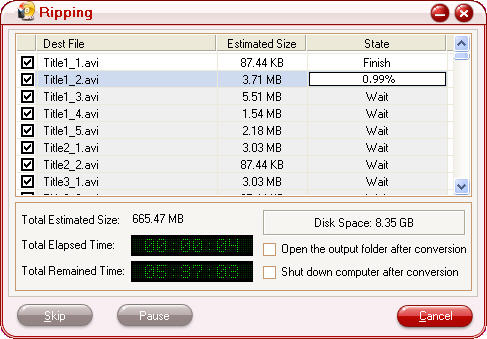
Tip: You can tick the options “Open the output folder after conversion” or “Shut down computer after conversion” according to your personal needs.
Hit the button “Open” at the bottom of the main interface to find your converted AVI files and transfer them into your Blackberry.
 Free Trial DVD Ripper

Useful Tips
- Convert/Transfer Videos to Samsung Galaxy Tab for Playback
- Samsung Galaxy Note 3 Review, Specs, and Video Playback Tips
- Transfer files from internal memory to SD card for Samsung Galaxy Note II
- Three ways to transfer videos/movies from PC/computer to Samsung Galaxy S3
- Download 1080p/720p MKV movies to Galaxy S4
- How to play Videos, Music and Movies on your Galaxy S3?