Home
Home
iPhone 4G HD is coming soon. The big fans of Apple will never miss this good chance to transfer from iPhone, iPhone 3G, or iPhone 3GS to the amazing new iPhone 4 - Apple’s "more powerful, easier to use, and more indispensable than ever" smart phone. As the highest-resolution iPhone, iPhone 4G features a remarkable 960*640 resolution, videos and movies will look unbelievable sharp and crisp in the 3.5 inch display. Are you ready for iPhone 4G HD’s arrival to experience your stunning Blu-ray and DVD movies on it? If not, this article will provide you with a solution on how to rip Blu-ray and DVD movies to iPhone 4G HD video on Mac in detail. Go to find a step-by step guide in the following contents.
The software you will need is Pavtube Blu-Ray Ripper for Mac. You can free download it by clicking the link attached on it.
How-To:
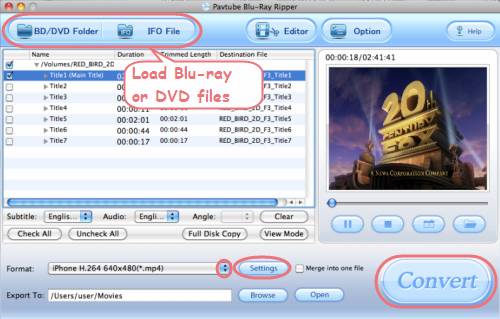
1. Run this Mac Blu-ray iPhone 4G ripper, and load BD/DVD movie files to it
There are two ways available to load movie files, through “BD/DVD Folder” and “IFO File”.
2. Select output format for iPhone 4.0
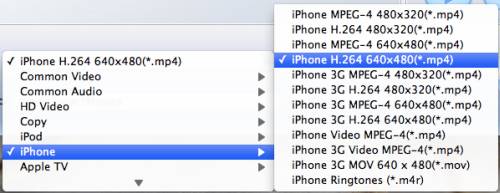
Click the pull down menu of "Format", and then tap "iPhone" preset. There are multiple formats specialized for iPhone, you can select any one of them to meet your needs freely.
3. Adjust audio and video parameters
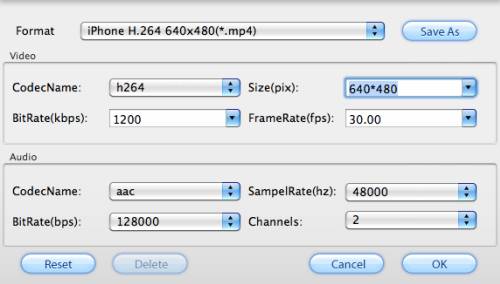
If you prefer to customize A/V settings, you can click "Settings" button to enter the window below, and adjust the parameters to your needed ones. These options include codec name, bit rate, aspect ration, frame rate, sample rate and audio channels.
If you are not familiar with the format restrictions of iPhone 4, you can see iPhone 4G supported video formats listed as below:
Video formats supported by iPhone 4:
H.264 video up to 720p, 30 frames per second, Main Profile level 3.1 with AAC-LC audio up to 160 Kbps, 48kHz, stereo audio in .m4v, .mp4, and .mov file formats;
MPEG-4 video, up to 2.5 Mbps, 640 by 480 pixels, 30 frames per second, Simple Profile with AAC-LC audio up to 160 Kbps per channel, 48kHz, stereo audio in .m4v, .mp4, and .mov file formats;
Motion JPEG (M-JPEG) up to 35 Mbps, 1280 by 720 pixels, 30 frames per second, audio in ulaw, PCM stereo audio in .avi file format.
4. Click "Convert" button to start ripping Blu-ray/DVD to iPhone 4G video
The popup ripping window of this Mac Blu-ray iPhone 4G ripper will show you conversion progress, time elapse, left time, generated file size and estimated file size clearly, so that you can control your time and storage space of your iPhone 4G HD in a proper way.
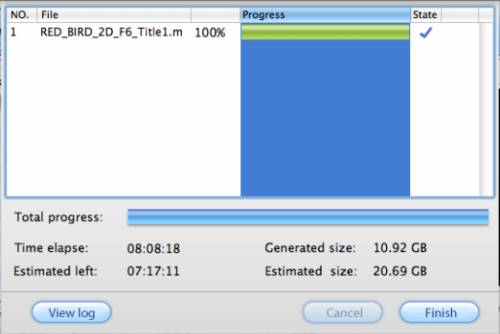
Once the ripping task is completed, you can click “Open” button at the bottom of the main interface to get the final output Blu-ray or DVD movies files for your iPhone 4 with ease. Sync the files to your iPhone 4G with iTunes for entertainment. Hope it helps.
Additional Tips:
Learn more tech specs of iPhone 4
See more useful info about iPhone, iPad and iPod
Try Pavtube Blu-ray to iPhone 4 Converter for Mac
Try Pavtube Blu-ray to iPhone 4 Converter for Windows
If you wanna share your videos or have perfect movie-watching experiences at home, you can make use of Apple AirPlay to watch movies on your wide screen TV via Apple TV 2.
 Free Trial Blu-ray Ripper for Mac

Useful Tips
- Convert AVCHD (MTS/M2TS) Videos for Playing on iPhone
- How to Record HD videos with the iPhone 5?
- View movies in format of WMV, MKV, AVI, TiVo and MTS on the new iPhone 5
- How to Sync Music, Photo, Video files from Mac to iPhone 5s?
- Watch Blu-ray ISO movies on Apple's new iPhone 5C
- Easy Way to Convert DVD ISO/IFO to iPhone 5S/5C on Mac