Home
Home
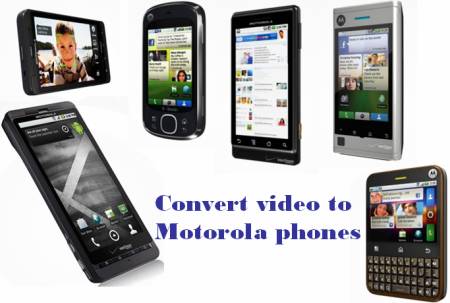
The most popular Motorola phones like Motorola Droid and Motorola Droid X are all have powerful video playback functionality. With wide screen and large storage capacity matching (For example, Motorola Droid comes with a 3.7-inch 854 x 480 touchscreen display, and Motorola Droid X features a 4.3-inch display with a resolution at 854x480, and both have a 16 GB preloaded microSD memory card, which can be upgraded to 32GB), these smart phones are suitable for owners to watch videos and movies when travel on a train or some other public vehicles. What happens is that due to format compatibility issues, Motorola phones only support certain video format like MP4 in a beautiful way, that is to say, to watch videos on Motorola phones, you need use a video to Motorola converter to convert video to Motorola Droid compatible format, or convert video to Motorola Droid X supported format, or convert video to Motorola phones playable file format before adding them to your little gadget for watching. In the purpose of pointing out a way on format conversion, this guide offers a solution on how to convert video to Motorola phones with Pavtube video to Motorola converter. A detailed guide is showing as below.
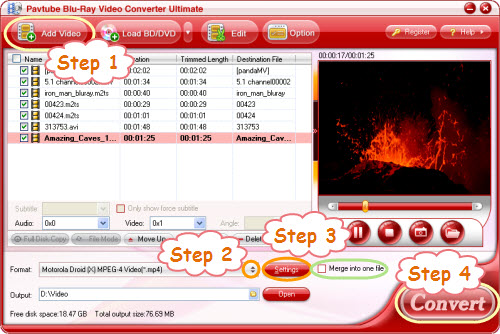
Step 1: Run Pavtube video to Motorola converter, and add video source to it
Click “Add Video” to load your source file. The video to Motorola Droid converter supports batch conversion, so you can add multiple files to it at a time. To combine several files into a single file, you need tick off the checkbox of “Merge into one file”.
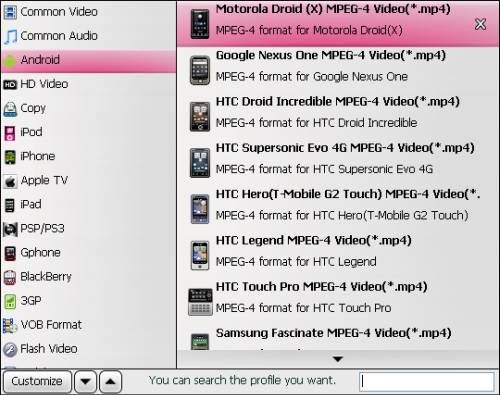
Step 2: Choose output format for your Motorola phones
Click on the drop-down list of “Format” to select output format for your Motorola phone. For instance, if you need convert video to Motorola Droid, or convert video to Motorola Droid X, you can follow “Android”> “Motorola Droid (X) MPEG-4 Video (*.mp4)”.
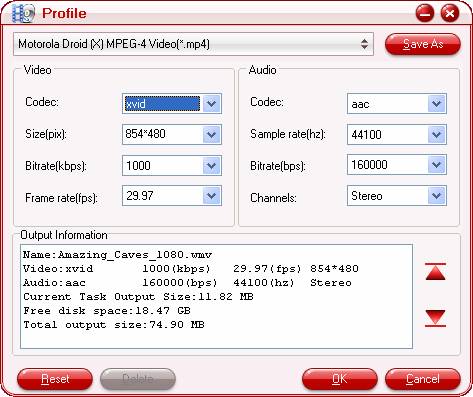
Step 3: Set advanced settings
If you have higher expectation on the output file quality, you can click “Settings” button to adjust audio and video parameters like codec name, aspect ratio, bit rate, frame rate, sample rate and audio channel in the following popup window.
Step 4: Convert video to Motorola Droid/Motorola Droid X/Motorola phones
Click the big button “Convert” to start converting video to Motorola Droid/Motorola Droid X/Motorola phones compatible video format via using Pavtube video to Motorola converter. Once the conversion task is done, you can click “Open” button to get the resulted mp4 files for your Motorola Droid/Motorola Droid X/Motorola phones with ease. Add them to the SD card of your Motorola phones for watching. Have fun.
Mac users can see more about How to convert videos, DVDs and Blu-rays to Motorola Droid X and Motorola Droid on Mac?
 Free Trial Video Converter Ultimate

Useful Tips
- Convert/Transfer Videos to Samsung Galaxy Tab for Playback
- Samsung Galaxy Note 3 Review, Specs, and Video Playback Tips
- Transfer files from internal memory to SD card for Samsung Galaxy Note II
- Three ways to transfer videos/movies from PC/computer to Samsung Galaxy S3
- Download 1080p/720p MKV movies to Galaxy S4
- How to play Videos, Music and Movies on your Galaxy S3?