Home
Home
The AAXA P2 Pico Projector displays sharp, legible text and features a built-in media player with 1GB of memory, an up to 4GB MicroSD card reader, and dual 0.5-watt speakers, all that and more deliver AAXA P2 the ability to independently display presentations, photos, and videos. Have you ever thought of watching Blu-ray, DVD and various videos on AAXA P2 Pico Projector? If you haven’t found out such a solution, this article may be of some help for you. It provides AAXA P2 Pico Projector owners with a guide on how to convert Blu-ray, DVD and various videos to AAXA P2 Pico Projector for projection. Go to check a detailed instruction in the following contents.
Before we start, you can have a look at AAXA P2 Pico Projector supported file types:
Video formats supported: MP4, AVI, WMV, and SMV
Audio formats supported: MP3, OOG, and WAV
Other formats supported: BMP, JPG, GIF, and TXT
Detailed guide:
How to watch Blu-ray, DVD and various videos on AAXA P2 Pico Projector?
Required software:
Pavtube Blu-ray video to AAXA P2 Converter
Step 1: Free download Pavtube Blu-ray video to AAXA P2 Converter, install and run it
Once run it, click “Add Video” to load your video files, like MKV, MTS/M2TS, TiVo, etc., and click “Load BD/DVD” to load Blu-ray or DVD movie files.
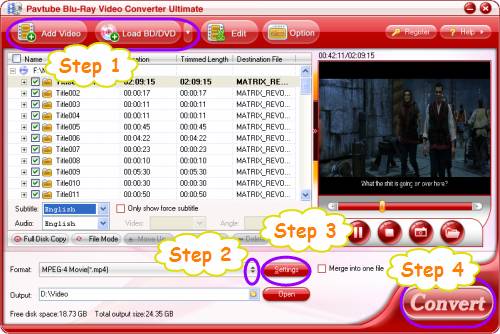
Step 2: Select output format for AAXA P2 Pico Projector
Because AAXA P2 Pico Projector supports videos in the format of MP4, AVI, WMV, and SMV, so to watch Blu-ray, DVD and various videos on AAXA P2 Pico Projector, you just need convert Blu-ray, DVD and various videos to a format among them. Taking MP4 as an example, click on the drop down list of “Format”, and then follow “Common Video”> “MPEG-4 Movie (*.mp4)” would be all right.
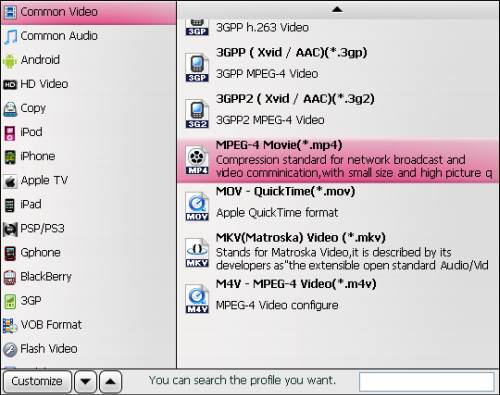
Tips:
Additional accessories allow the AAXA P2 Pico Projector to connect to Apple iPhone/iPod, Microsoft Zune, Sony PSP, and a wide range of cell phones from Nokia, LG, Samsung, and HTC, so if you wanna use P2 as a display of these devices, just choose a format preset optimized for your device.
Step 3: Adjust video and audio parameters
Pavtube Blu-ray video to AAXA P2 Converter allows users customizing the output file quality by clicking “Settings” button to adjust video and audio parameters including codec, aspect ratio, bit rate, frame rate, sample rate, and audio channel.
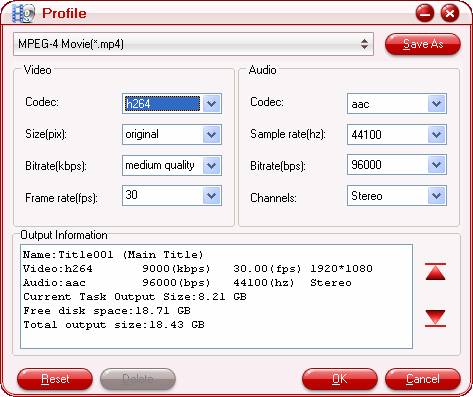
Step 4: Convert Blu-ray, DVD and various videos to AAXA P2 Pico Projector
Click “Convert” button to start converting Blu-ray, DVD and various videos to AAXA P2 Pico Projector. Pavtube Blu-ray video to AAXA P2 Converter adopts advanced encoding technology, which guarantees you a perfect audio and video in sync output file quality. Once the conversion task is finished, you can click “Open” button to get the converted files for your AAXA P2 Pico Projector for projection. Have fun.
 Free Trial Video Converter Ultimate

Useful Tips
- How to convert blu-ray movies, DVDs and HD videos to Optoma PK301/201 Pico Projector video on Mac OS X?
- Customize blu-ray movies, DVDs for Samsung SP-H03 Pico Projector
- Play Blu-ray, DVD on Optoma PK201 and Optoma PK301
- Projecting blu-ray and DVD movies with Optoma PK301/ PK201 Pico Projector
- How to project blu-ray and DVD movies with AAXA P2 Pico Projector?
- How to customize Blu-ray Movies, DVDs and videos for AAXA P2 projection?