Home
HomeYou may meet the problem that you do not know how to playback DVD movies on your Blackberry on Mac OS X. A robust DVD ripper for Blackberry is what you need. And this article will show you a specific resolution on how to rip DVD to Blackberry on Mac OS X with Pavtube DVD to Blackberry Converter for Mac.
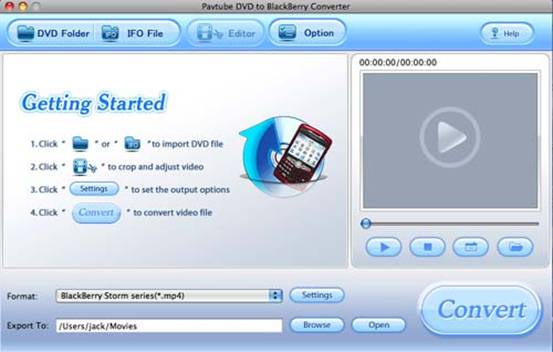
Step1: Download and install Pavtube DVD to Blackberry Converter for Mac. The main interface will be shown as below.
Step2: Load DVD files
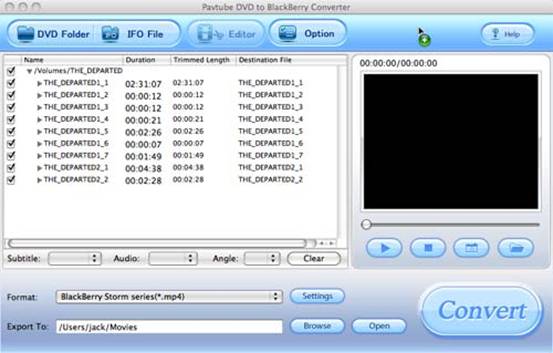
Insert DVD of your choice; click the button “DVD Folder” or “IFO File” to import DVD files into this program. This interface will pop up.
Step3: Set output path and location
This program allows you to choose the output format and destination. You can select the format from the drop down list of profile “Format”. Hit button “Browse” to set the output location.

Step4: Choose subtitle, audio track and angle
If the DVD file you want to convert contains more than one language as well as the audio track, you can select the language you want from the checkbox.
Moreover, you can change the camera angle from the drop down list of “Angle”.

Step5: Set output settings
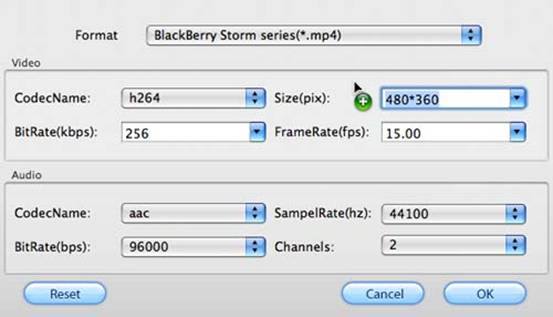
If you want to customize the output files’ quality, you can click the button “Settings” at the bottom of the main interface to change the video settings like CodecName, Size, BitRate, FrameRate as well as the audio settings.
Step6: Take preview and snapshot
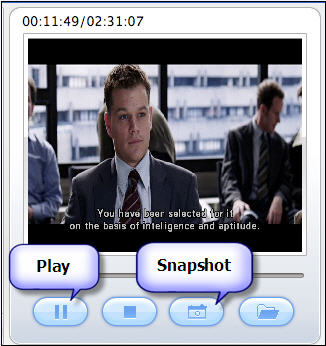
Click the button “Play”, you can have a preview of the whole movie; if you want to capture some pictures from the movie for future use or other needs, you only need click the button “Snapshot” to capture images.
Step7: Option settings
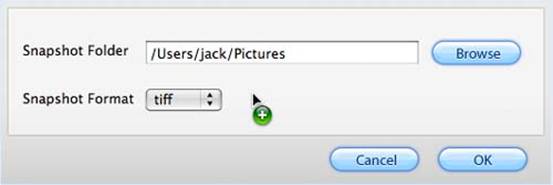
Click button “Option”, you can set the snapshot saved place and the format you want.
Step8: Edit
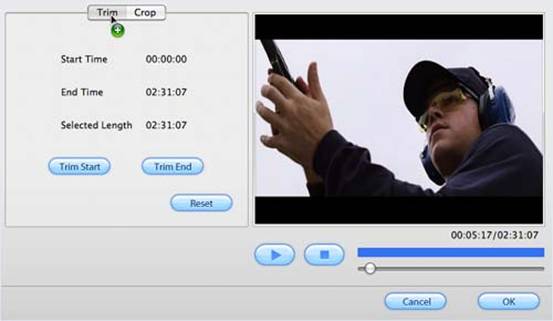
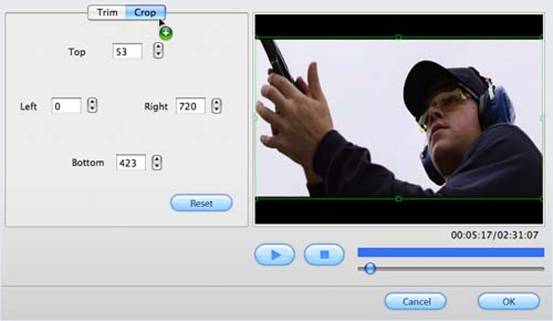
If you want to customize the movie to be what you want, just click button “Editor”, and then you can trim and crop the video.
On the “Trim” panel, you can drag the slider bar to set the start time and the end time of the movie you want to convert.
Under the “Crop” tab, you can change the figures of the drop-down lists of “Top”, “Left”, “Right” and “Bottom”, or change the dashed frame on the screen to cut the black edges.
Step9: Start conversion
After all settings are ready according to your choice, you only click the button” “Convert” at the right bottom of the main interface, then the conversion window will pop up, click “Start”, you can start conversion immediately.
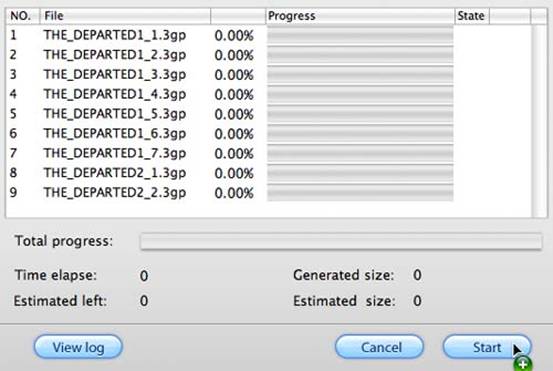
Finally, you can click button “Open” on the main interface to find the output files and transfer them into your Blackberry.
 Free Trial DVD Ripper for Mac

Useful Tips
- Convert/Transfer Videos to Samsung Galaxy Tab for Playback
- Samsung Galaxy Note 3 Review, Specs, and Video Playback Tips
- Transfer files from internal memory to SD card for Samsung Galaxy Note II
- Three ways to transfer videos/movies from PC/computer to Samsung Galaxy S3
- Download 1080p/720p MKV movies to Galaxy S4
- How to play Videos, Music and Movies on your Galaxy S3?