Home
Home
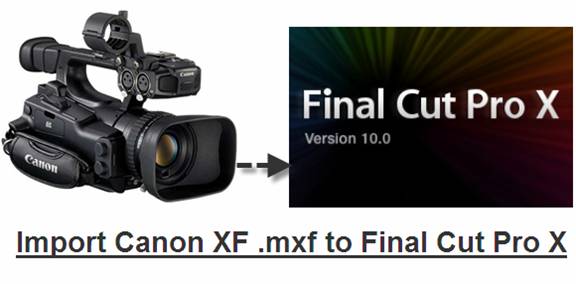
You must be disappointed when the FCP X failed to import recordings from Canon XF105. Well, don’t blame to the Final Cut Pro X, the “Import from Camera…” option works just like “Log and Transfer”. The thing is, even FCP 7 does not work with the Canon XF codec. The XF105 (XF300/XF305) utilizes Canon's XF Codec – a file-based MPEG-2 compression with an MXF File Wrapper that ensures the widest compatibility with existing industry infrastructure, metadata and non-linear editing (NLE) systems. The codec's 4:2:2 color sampling provides ultra-fine transitions in tone and color for maintaining the highest image quality needed for advanced post production processing. If you want to edit with MXF natively, get Adobe Premiere Pro CS5.5...Or convert the Canon MXF to something Final Cut Pro X can edit natively, say Apple ProRes 422 encoded MOV format. Here’s a detailed workaround for getting Canon MXF shootings into FCP X.
Preparation
1. Transfer the .mxf clips to Mac HDD.
2. Get Pavtube HD Video Converter for Mac ($35). Click here to download a trial.
Transcode/Convert Canon XF105 recordings to Apple ProRes 422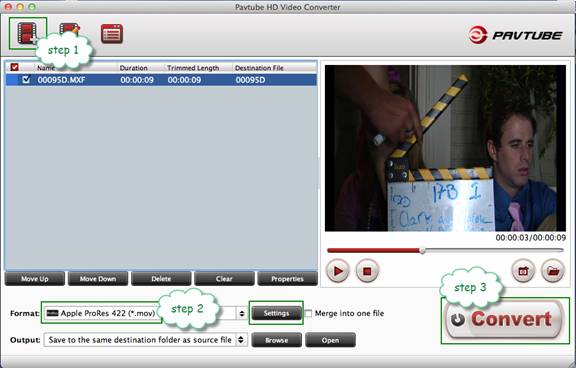
Step 1. Launch the Pavtube HD Video Converter. Click “Add” and browse to a Canon .mxf clip and the software will add it to file list. Repeat the operation to load multiple .mxf videos.
Step 2. Click on “Format” and choose “Final Cut Pro >>Apple ProRes 422 (*.mov)”.
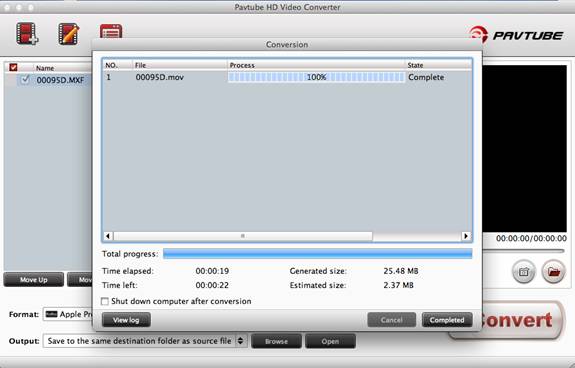
Step 3. Click “Convert” to start transcoding the Canon XF105 MPEG2 recordings to Apple ProRes /converting .mxf to .mov videos. After conversion click “Open” to find .mov videos.
Some more helpful features of the app:
1. Settings- click to set video resolution(1920x1080/1440x1080/1280x720/720x480), bitrate(from 1Mbps to 20Mbps), frame rate (24p/30p)
2. Editor (next to “Add” icon)- click to set deinterlace, denoise, mute, volume up, trim, crop, etc.
Load/Import converted Canon XF105 footage to Final Cut Pro X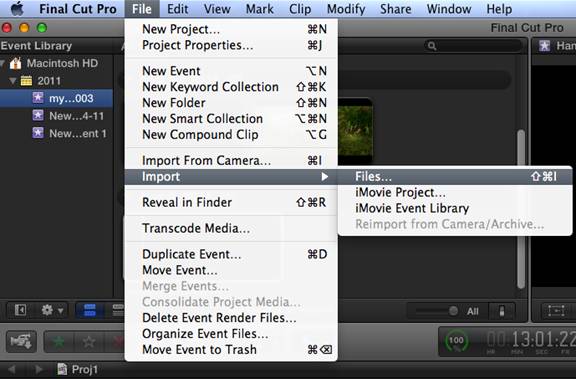
Step 1. Start up Final Cut Pro X, follow “File>>Import>>Files”.
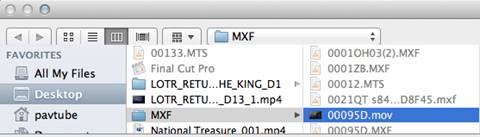
Step 2. Browse to the converted .mov video in the “Import Files” window. Press “Open” at the right bottom.
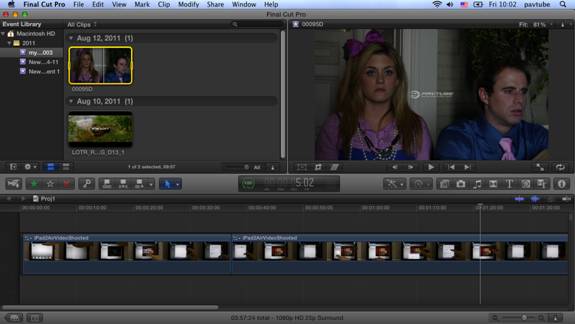
Now the Canon XF105 footage successfully imported to FCP X and you can get down to video editing. Wait- Why is there a Pavtube logo on the screen? Well, this is because I was using a trial version~~~
 Free Trial HD Video Converter for Mac

Useful Tips
- Import footages/videos/projects into Final Cut Pro X without rendering
- Convert Panasonic MXF Footages to FCP as ProRes for Editing
- Workflow for Importing HX-WA20 MP4 to FCP (X) on Mac
- Edit MediaPortal TS Files in FCP X/Avid/iMovie and Burn to DVD on Mac
- Convert Panasonic TM900 MTS Videos to ProRes 422 for Editing on FCP
- MKV to FCP---Convert MKV to Apple ProRes 422 MOV for Final Cut Pro